HOW TO CREATE A 9 DOT NAVIGATION MENU USING CSS AND HTML
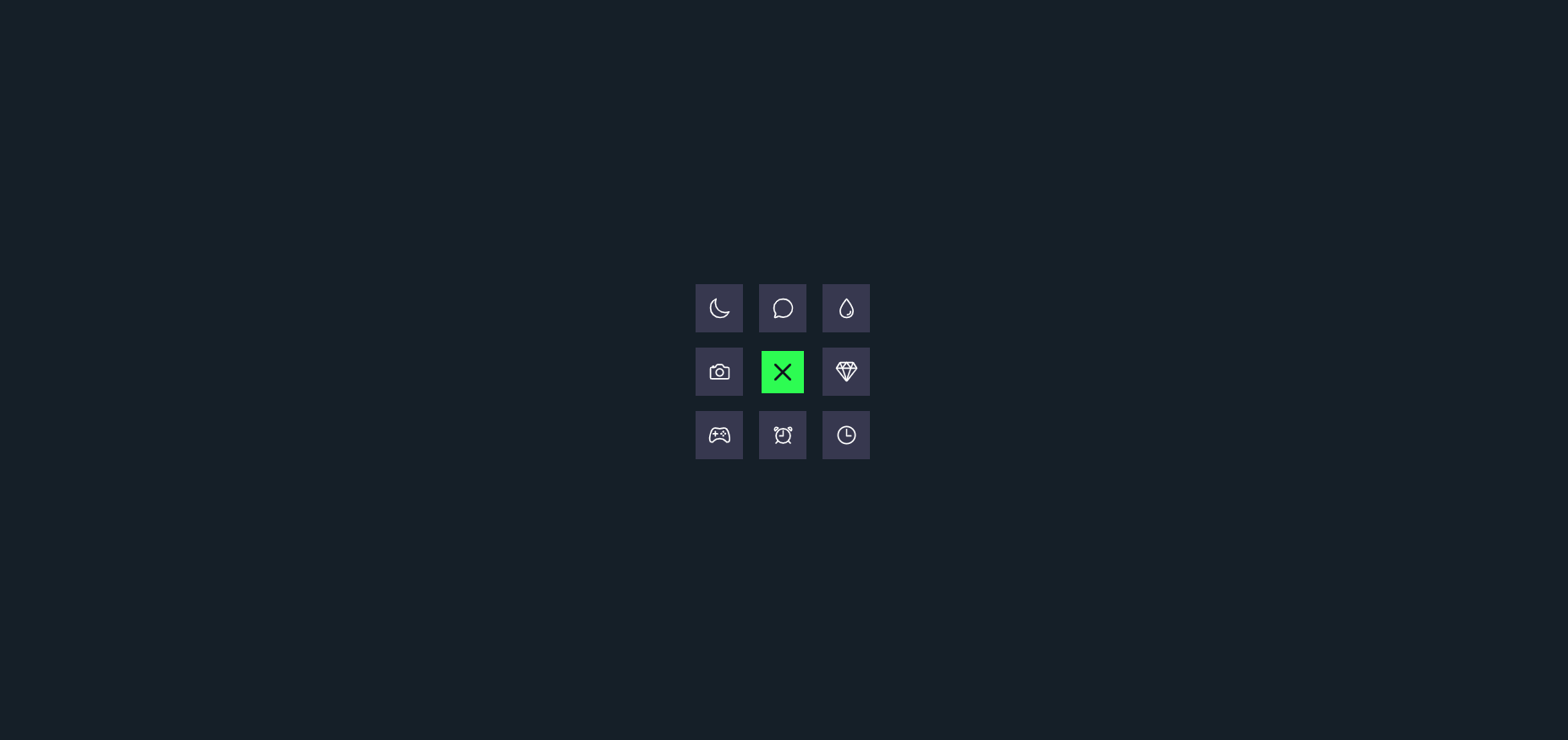
In this project we will create a simple 9 dot navigation menu using CSS and HTML. This menu features a modern design with smooth animations and a clean layout. This tutorial helps beginners understand how to create engaging navigation elements using pure CSS and HTML.
Technologies Used
- HTML – structure of the navigation menu
- CSS – styling and animations
- JavaScript – interactivity and dynamic behavior
HTML Structure
The HTML structure of the 9-dot navigation menu is designed using a simple grid layout. Each dot represents a navigation item that can be linked to different sections or pages. The structure is lightweight and flexible, making it easy to integrate into any website layout.
HTML Code
<!DOCTYPE html>
<html lang="en">
<head>
  <meta charset="UTF-8">
  <title>9 Dot Navigation Menu | @EduCrush</title>
  <link rel="stylesheet" href="./style.css">
</head>

<body>

<div class="main">
  <div class="navigation">
    <span style="--i:0;--x:-1;--y:0;">
      <ion-icon name="camera-outline"></ion-icon>
    </span>
    <span style="--i:1;--x:1;--y:0;">
      <ion-icon name="diamond-outline"></ion-icon>
    </span>
    <span style="--i:2;--x:0;--y:-1;">
      <ion-icon name="chatbubble-outline"></ion-icon>
    </span>
    <span style="--i:3;--x:0;--y:1;">
      <ion-icon name="alarm-outline"></ion-icon>
    </span>
    <span style="--i:4;--x:-1;--y:1;">
      <ion-icon name="game-controller-outline"></ion-icon>
    </span>
    <span style="--i:5;--x:-1;--y:-1;">
      <ion-icon name="moon-outline"></ion-icon>
    </span>
    <span style="--i:6;--x:1;--y:-1;">
      <ion-icon name="water-outline"></ion-icon>
    </span>
    <span style="--i:7;--x:1;--y:1;">
      <ion-icon name="time-outline"></ion-icon>
    </span>
  </div>

  <div class="close">
    <ion-icon name="close-outline"></ion-icon>
  </div>
</div>

<script src='https://unpkg.com/ionicons@5.5.2/dist/ionicons/ionicons.js'></script>
<script src='https://unpkg.com/ionicons@5.5.2/dist/ionicons/ionicons.esm.js'></script>
<script src="./script.js"></script>

</body>
</html>
CSS Styling
CSS is used to arrange the dots in a 3x3 grid using flexbox or grid layout. Hover effects, transitions, and animations are applied to make the menu interactive and visually appealing. The use of spacing, colors, and smooth animations enhances the user experience and gives a modern UI feel.
CSS Code
* {
    margin: 0;
    padding: 0;
    box-sizing: border-box;
  }
  body {
    display: flex;
    justify-content: center;
    align-items: center;
    min-height: 100vh;
    background: #151F28;
  }
  .main {
    position: relative;
    display: flex;
    justify-content: center;
    align-items: center;
    width: 170px;
    height: 170px;
  }
  .main .navigation {
    position: relative;
    width: 40px;
    height: 40px;
    cursor: pointer;
    display: flex;
    justify-content: center;
    align-items: center;
    transition: 0.5s;
  }
  .main .navigation span {
    position: absolute;
    width: 7px;
    height: 7px;
    background: #fff;
    transform: translate(calc(14px * var(--x)), calc(14px * var(--y)));
    transition: transform 0.5s, width 0.5s, height 0.5s, background 0.5s;
    transition-delay: calc(0.1s * var(--i));
    display: flex;
    justify-content: center;
    align-items: center;
  }
  .main .navigation.active span {
    width: 45px;
    height: 45px;
    background: #37384f;
    transform: translate(calc(60px * var(--x)), calc(60px * var(--y)));
  }

  .main .navigation span ion-icon {
    transition: 0.5s;
    font-size: 0em;
    color: #fff;
  }
  .main .navigation.active span ion-icon {
    font-size: 1.35em;
  }
  .main .navigation.active span:hover ion-icon {
    color: #2dfc52;
    filter: drop-shadow(0 0 2px #2dfc52) drop-shadow(0 0 5px #2dfc52)
      drop-shadow(0 0 15px #2dfc52);
  }
  .close {
    position: absolute;
    width: 7px;
    height: 7px;
    background: #fff;
    transition: 0.5s;
    transition-delay: 0.4s;
    pointer-events: none;
    display: flex;
    justify-content: center;
    align-items: center;
  }
.main .navigation span ion-icon {
    transition: 0.5s;
    font-size: 0em;
    color: #fff;
}
.main .navigation.active ~ .close {
    width: 40px;
    height: 40px;
    pointer-events: initial;
    transition-delay: 0.8s;
    background: #2dfc52;
}
.main .navigation ~ .close ion-icon {
    font-size: 2em;
    scale: 0;
    color: #10131c;
    transition: 0.5s;
}
.main .navigation.active ~ .close ion-icon {
    scale: 1;
    transition-delay: 1s;
}
JavaScript Functionality
JavaScript adds interactivity to the navigation menu by handling click events and toggling the menu visibility. It can also be used to animate the dots or redirect users to specific sections. This makes the menu dynamic and improves usability on both desktop and mobile devices.
JavaScript Code
let navigation = document.querySelector(".navigation");
let close = document.querySelector(".close");

navigation.onclick = function () {
  navigation.classList.add("active");
};

close.onclick = function () {
  navigation.classList.remove("active");
};
Conclusion
The 9 dot navigation menu is a creative and visually appealing way to enhance user experience on websites. By using simple HTML, CSS, and JavaScript, developers can create engaging navigation elements that capture user attention and provide a unique interface for website navigation.
Project Highlights
The 9-dot navigation menu is a clean and modern UI component that improves website navigation. It is lightweight, responsive, and easy to customize according to different projects. This type of menu is widely used in modern web applications and dashboards to provide quick access to multiple sections.
For more programming projects, source codes and notes join the EduCrush Telegram channel.
Join Telegram